Skip proprietary barcode printers. Enter your unit numbers and locations below to preview both Avery 5160 and 2"×2" square tags side-by-side and download a vector PDF formatted for standard weatherproof US Letter sheets.
Label Sheet Specifications (Avery 5160 vs. 2"×2" Square)
Spec
Avery 5160 / 8160
2" × 2" Square Sheet
Label Size
1" × 2-5/8" (horizontal)
2" × 2" (square)
Labels / Sheet
30 labels (3 cols × 10 rows)
12 labels (3 cols × 4 rows)
Paper Size
US Letter (8.5" × 11")
US Letter (8.5" × 11")
Best Placement
Curved shell neck, cabinet lip, or hang-tag sleeve
Flat wall cabinet door, large 10–20 lb cylinder body
Set Paper Size to US Letter (8.5" × 11"): Do not use A4 — Avery 5160 margins are calibrated strictly to US Letter coordinates.
Set Scale to 100% / Actual Size: Uncheck "Fit to Page", "Shrink to Printable Area", or "Default" auto-scaling in Chrome/Edge/Adobe Acrobat, which shifts lower rows off the die-cut borders.
Select "Labels" or "Heavyweight" Media Type: On laser printers, choosing Heavy/Labels slows the fuser slightly so toner bonds cleanly to weatherproof polyester stock.
Run a 1-sheet plain paper test first: Print page 1 on plain copy paper, stack it directly over a blank label sheet, and hold both up to a ceiling light to confirm every box aligns before feeding sticker stock.
What Is Encoded Inside Each QR Code & Data Privacy
Every generated QR code stores only a short, non-sensitive deep link to your local workspace unit identifier:
https://firetaglog.com/app/?inspect=fe_101
Zero PII or building secrets in the QR: No customer names, street addresses, technician names, or past inspection results are encoded inside the barcode itself.
100% browser-local PDF rendering: Your tag list is converted to vector QR graphics and PDF bytes inside your browser — nothing is uploaded to a remote server.
Offline-friendly lookup: Once you have loaded /app/ on your phone, scanning a tag matches the unit stored in your device's local IndexedDB even without cell reception.
Mobile Phone Scanning Walkthrough
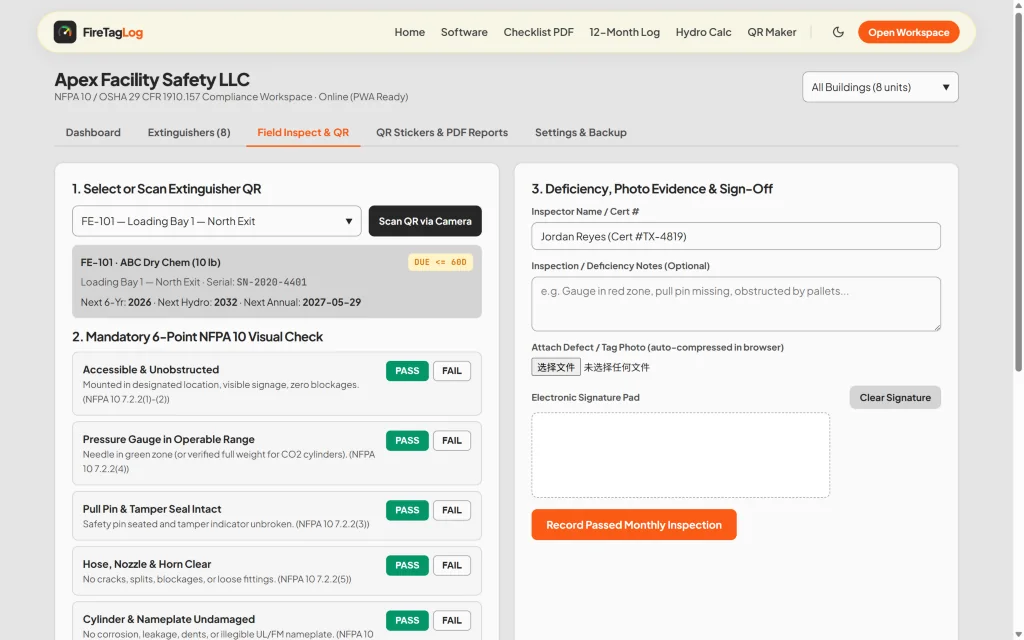
Real /app/ Field Inspect & QR view — scanning any printed tag jumps straight to that unit's 6-point check.
Android (Chrome / Edge): Open /app/ → Field Inspect & QR → tap Scan QR via Camera (uses native BarcodeDetector) or scan via the phone camera app.
iPhone (iOS Safari): Point the built-in iPhone Camera app at the sticker and tap the yellow URL banner — Safari opens that exact unit directly.
Log & sign offline: Tap Pass/Fail on the 6 NFPA 10 checks, snap a compressed defect photo if needed, sign on screen, and save locally to IndexedDB.
Regulatory Editions, Official Sources & Local AHJ Scope:
Guidance and interval calculations on this page reference NFPA 10 (2022 Edition) (nfpa.org) and federal OSHA 29 CFR 1910.157 for U.S. general industry workplaces (osha.gov).
Note that OSHA 1910.157(b) contains partial/total exemptions when an employer's written emergency action plan mandates total evacuation without employee extinguisher use, while states, cities, and insurance carriers frequently adopt earlier or amended NFPA 10 editions (such as 2018 or 2022) via IFC/NFPA 1.
FireTagLog is a recordkeeping and calculation assistant — final compliance verification, tag format approval, and licensed maintenance remain the responsibility of your certified technician and local Authority Having Jurisdiction (AHJ).